Link Integrations to SmartLists (the Right Way)
In ReactIn, integrations are not assigned to existing SmartLists. Instead, you create a new SmartList that is directly connected to a specific integration. This setup ensures leads are automatically collected in the right place, with zero extra config.
🧩 How it works
When you want to capture leads from a tool like Tally, Cal.com, or Brevo:
-
Go to your dashboard
-
Click “New SmartList”
-
Choose the integration type (Tally, Typeform, Cal.com, Stripe, etc.)
-
Follow the setup instructions (OAuth, API key, or form URL)
-
The SmartList is now automatically linked to that integration
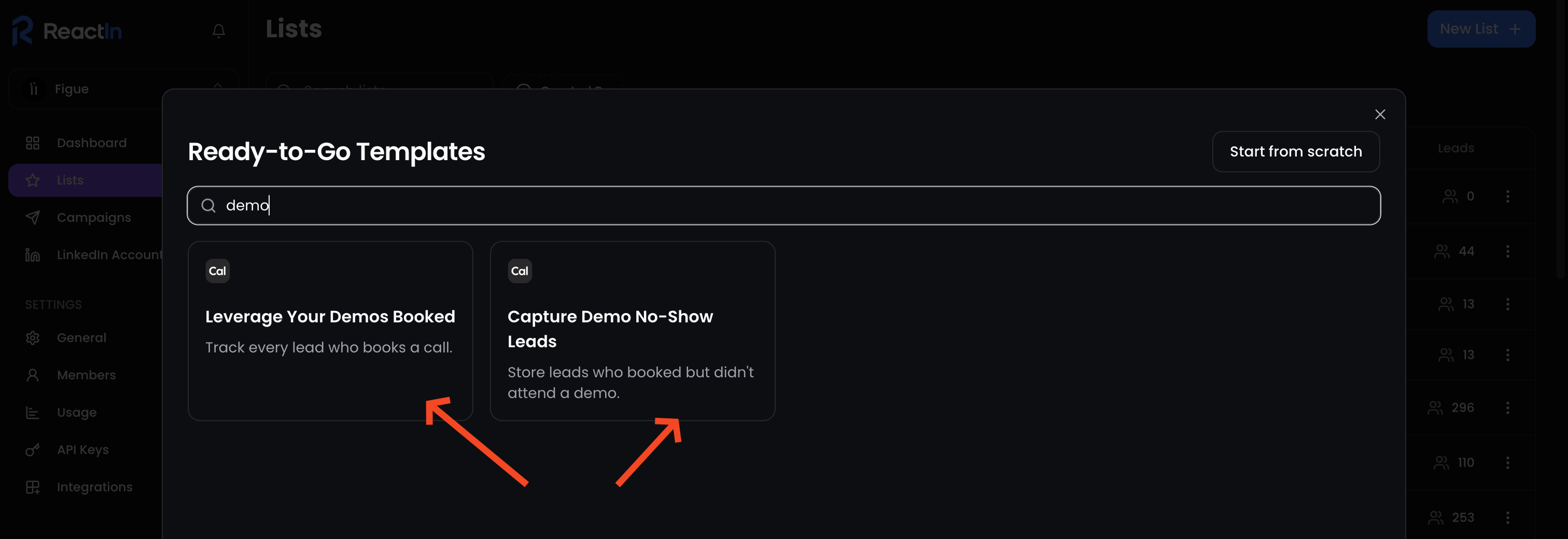
📥 Any leads submitted through that connected tool will appear instantly in the linked SmartList.
📌 Why this matters
This setup ensures:
-
🔒 Clean separation of data by source
-
🧠 SmartLists are self-contained (no need to reassign integrations manually)
-
🔄 Campaigns can be attached directly to each source-specific list
-
📊 You can monitor conversion performance by entry point
🧠 Pro tips
-
Name your SmartLists after the integration for clarity:
📝 Tally, Demo Request,📅 Cal.com, Booked Call,💸 Stripe, Failed Payment -
Each SmartList can have:
-
Its own campaigns
-
Its own SmartFilters
-
Its own messaging strategy
-
💡 Pro tip: Keep each integration linked to its dedicated SmartList for organized, clean data flows.
Ready to move on?
👉 Next Step: Campaign Statistics: Invite Acceptance & Reply Rate →