How to Automatically Accept LinkedIn Connection Requests (and Send a Welcome DM)
Learn how to automatically accept LinkedIn connection requests and send personalized welcome DMs. Step-by-step ReactIn setup, compare 5 tools, and maintain 26%+ reply rates safely.
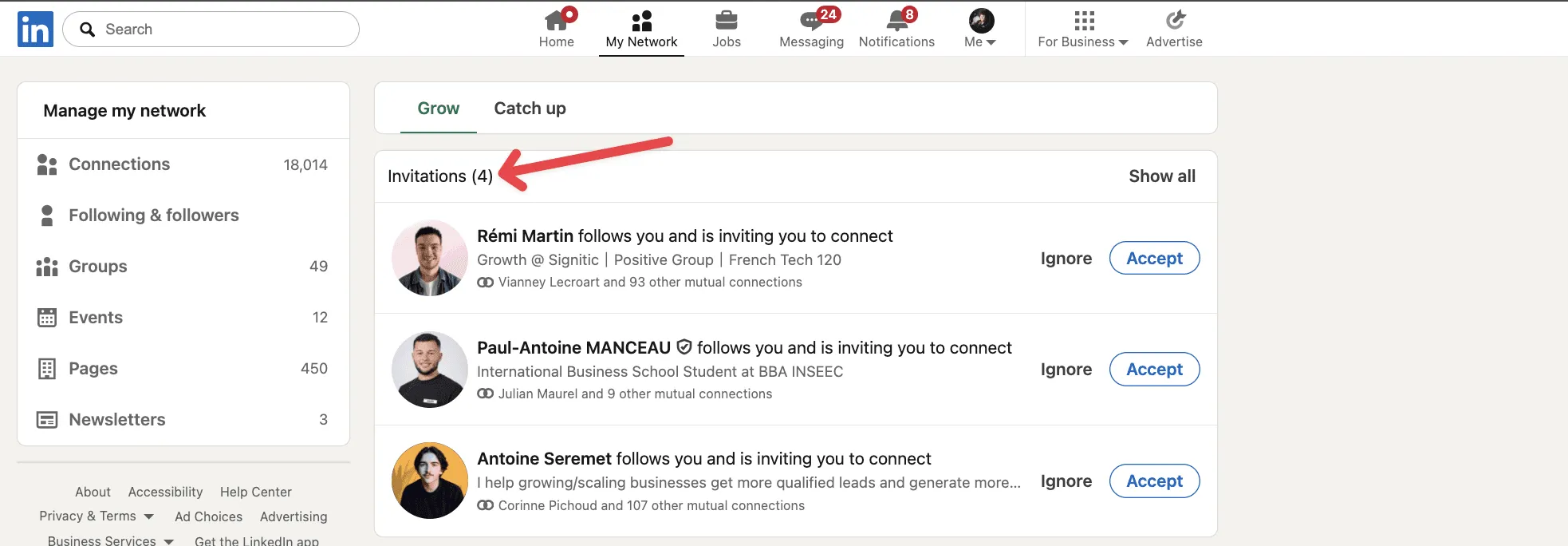
You're receiving dozens of LinkedIn connection requests, but every request you don't accept the same day is a lost opportunity. You need a way to accept them automatically, at a human pace, and start the conversation while the intent is fresh.
LinkedIn has over 1 billion members. When someone sends you a connection request, they're signaling interest. They found your profile, liked what they saw, and clicked "Connect." That's a warm lead - if you act fast enough. The best auto accepter for LinkedIn connections handles this for you.
days: average time to manually accept a LinkedIn connection request
Based on data from 4 LinkedIn accounts over 3 months
This guide shows you exactly how to automatically accept LinkedIn connection requests, send personalized welcome DMs, and turn every new connection into a conversation - safely and on autopilot. If you want the opposite direction, sending invitations automatically, read our guide on how to automate LinkedIn connection requests.
Why You Need a LinkedIn Auto Accepter for Connections
When someone sends you a connection request, they're showing active buying intent. They found your profile, were curious about your offer, and took action. A LinkedIn auto connect tool ensures you never miss these warm leads.
But here's the problem: most professionals take 3-5 days to accept connection requests. By then, the person who sent the request has already moved on, connected with a competitor, or simply lost interest.
Using a tool to automatically accept LinkedIn connections solves this by responding the same day, while the intent is still fresh. LinkedIn automatic connections mean higher reply rates, more conversations, and a growing network on autopilot.
LinkedIn members worldwide - your next client is already sending you a request
LinkedIn official stats, 2025
Manual vs Automatic: What You're Losing
We tested auto-accept automation on 4 LinkedIn accounts for 3 months. The difference was dramatic:
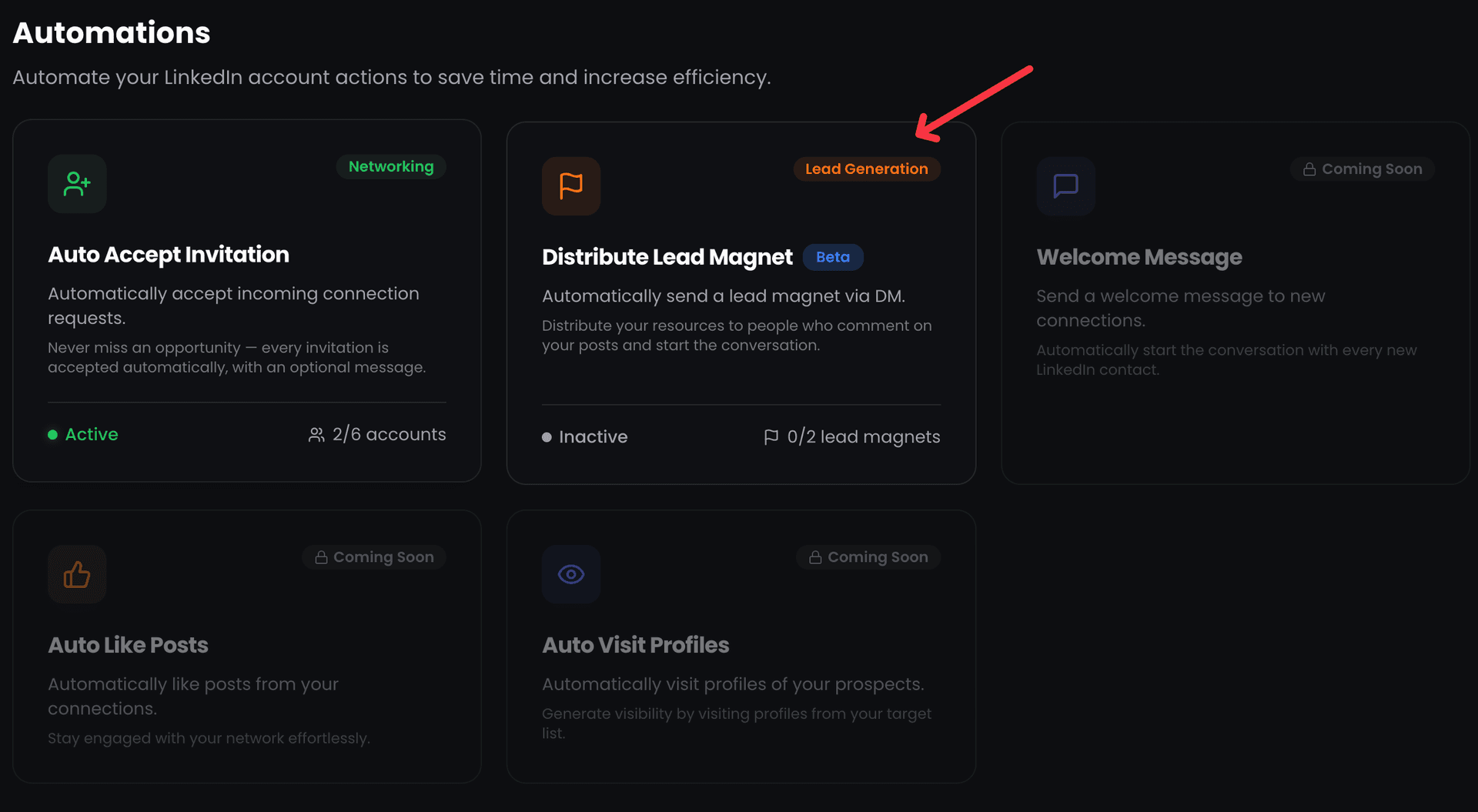
Before automation:
- Average acceptance time: 2-3 days
- Reply rate to welcome messages: 12%
After automation:
- Average acceptance time: same day (during working hours)
- Reply rate to welcome messages: 26.94%
That's a 125% increase in reply rates - just by accepting connections faster.
reply rate on welcome messages after enabling auto-accept
Measured across 4 LinkedIn accounts over 3 months
What Is the Best Auto Accepter for LinkedIn Connections? (5 Tools Compared)
Looking for the best auto accepter for LinkedIn connections? Not all tools handle incoming invitations the same way. Here's a quick comparison of the most popular options:
| Tool | Auto-Accept | Welcome DM | Safety Features | Type |
|---|---|---|---|---|
| ReactIn | ✅ Built-in | ✅ Personalized | Smart limits, timezone, skip notes | Cloud-based |
| Dux-Soup | ✅ With setup | ✅ Basic | Daily limits only | Chrome extension |
| Linked Helper | ✅ With setup | ✅ Templates | Daily limits, delays | Desktop app |
| Expandi | ❌ Manual | ✅ Sequences | Smart limits, warmup | Cloud-based |
| Waalaxy | ❌ Manual | ✅ Sequences | Daily quotas | Cloud-based |
ReactIn is the only tool with built-in auto-accept + smart safety features (skip notes, randomized volumes, timezone scheduling). Cloud-based means no browser extension to install - it runs 24/7 even when your computer is off.
Step 1: Create Your Received Connections SmartList
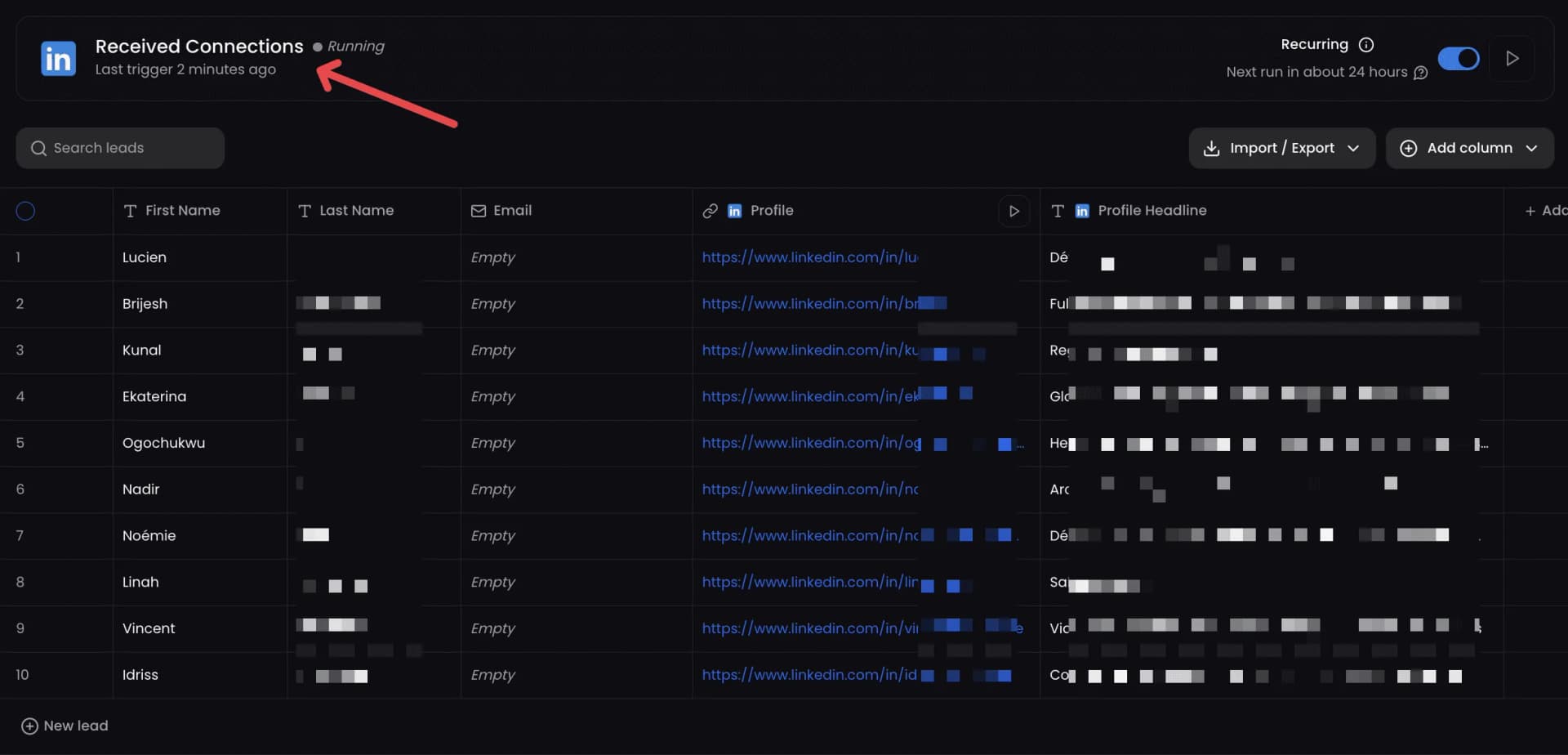
The SmartList is the foundation of your auto-accept automation. It automatically tracks everyone who sends you a connection request on LinkedIn.
How it works
Once you create this list in ReactIn:
- It updates daily with new pending connection requests
- New requests are automatically added to your leads list
- It feeds directly into a campaign that accepts requests and sends messages
Setup instructions
Sign up for ReactIn
Create your free account at ReactIn.io if you haven't already.
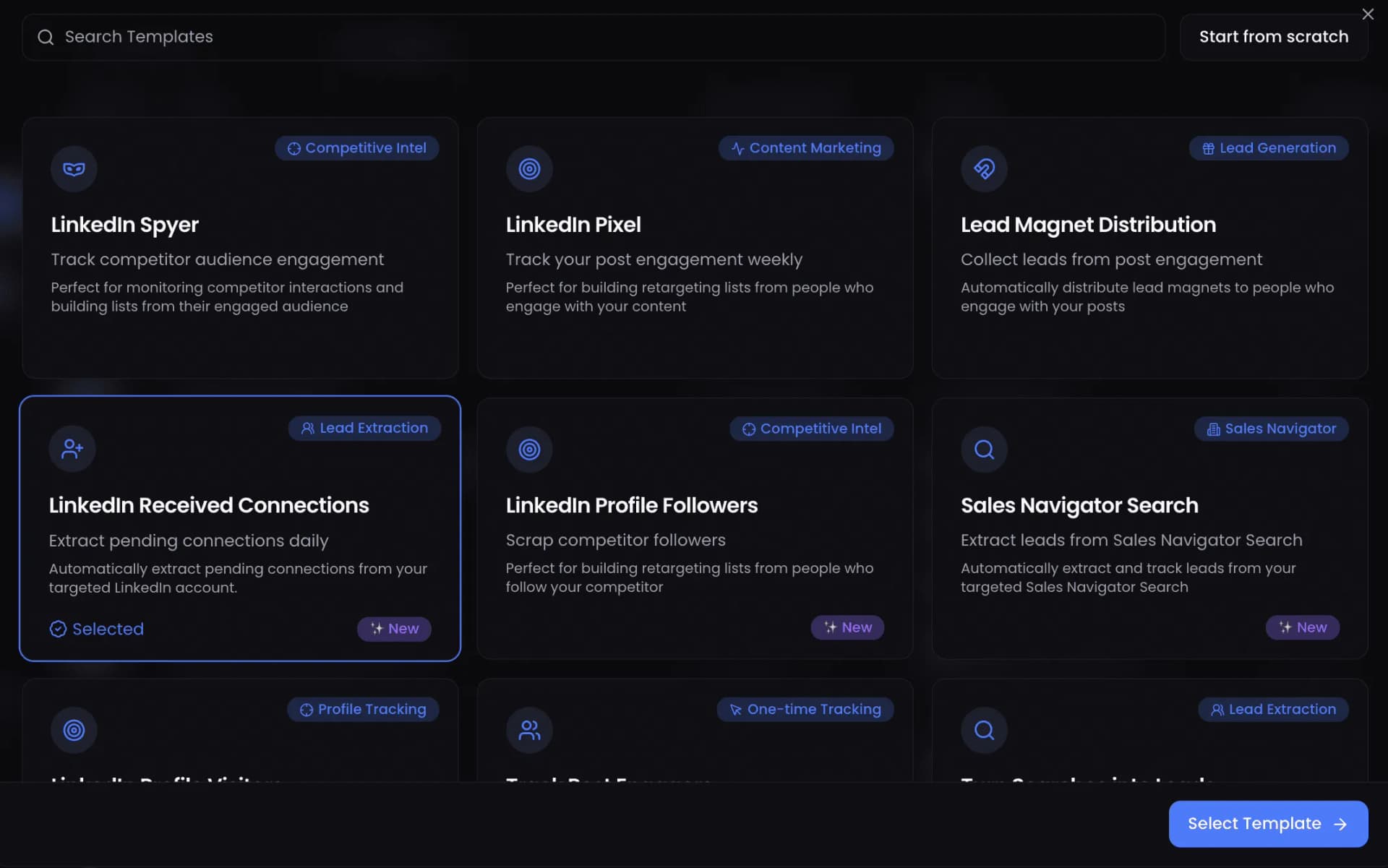
Go to Lists → New List
Navigate to the Lists section and click the "New List" button.
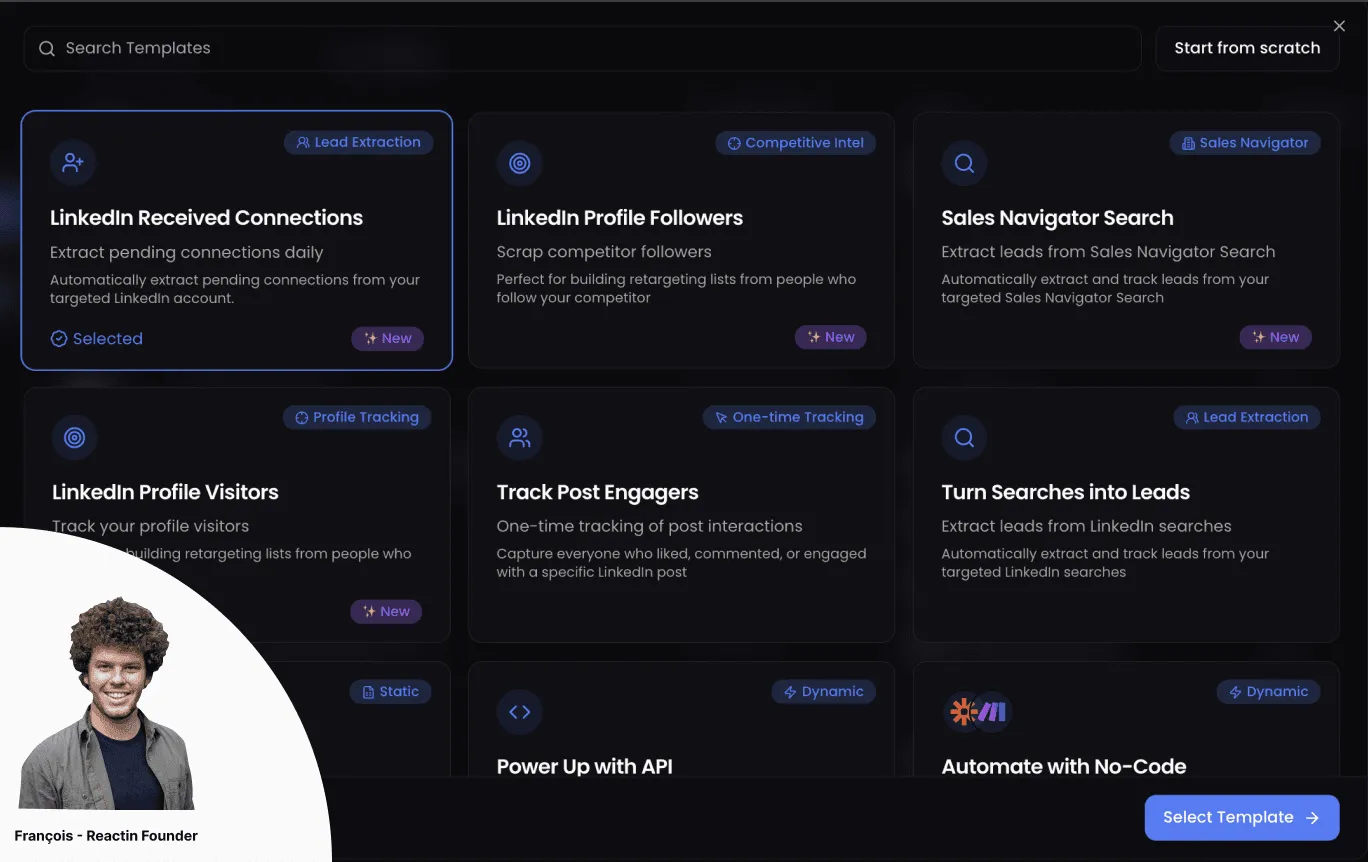
Select LinkedIn Received Connections
Choose the "LinkedIn Received Connections" template from the available SmartList types.
Click Select Template
Confirm your template selection to proceed with the configuration.
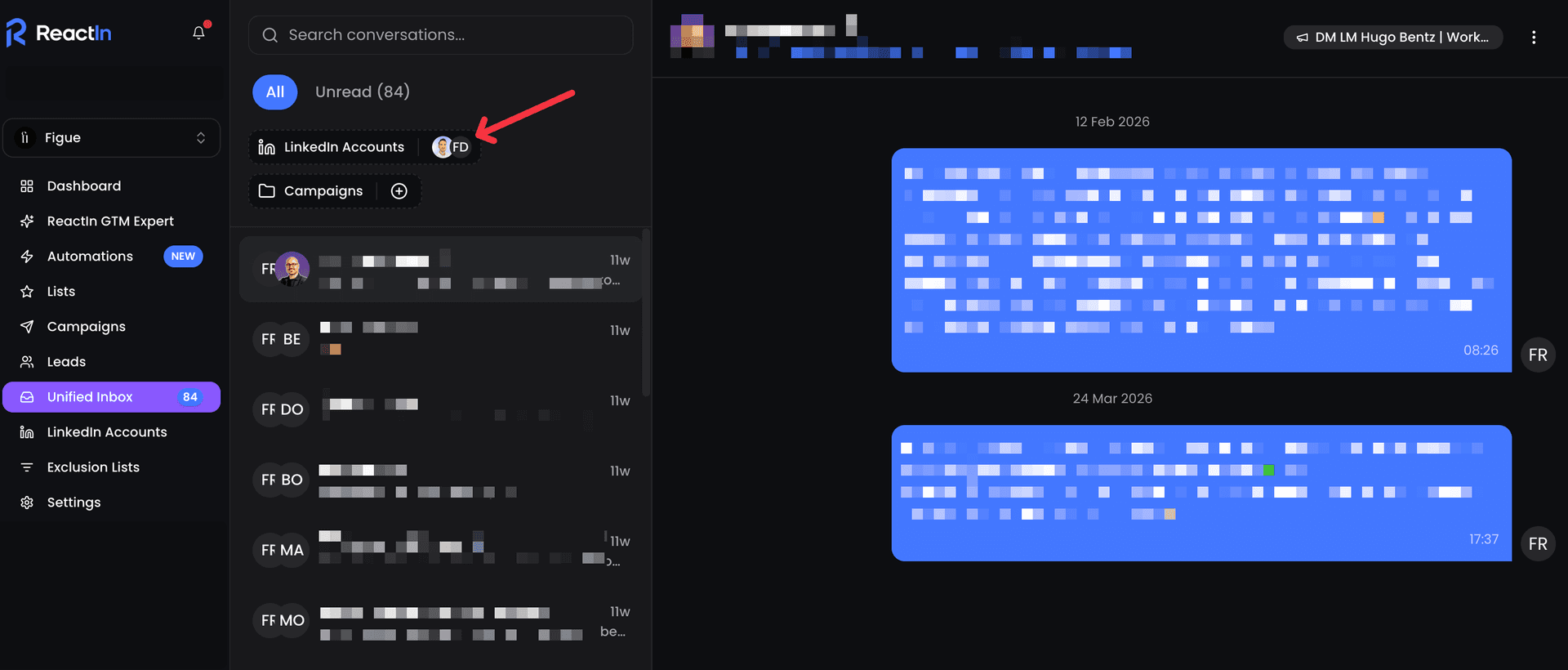
Choose your LinkedIn account
Select which LinkedIn account you want to monitor for incoming connection requests.
Click Continue
Move to the next step of the setup process.
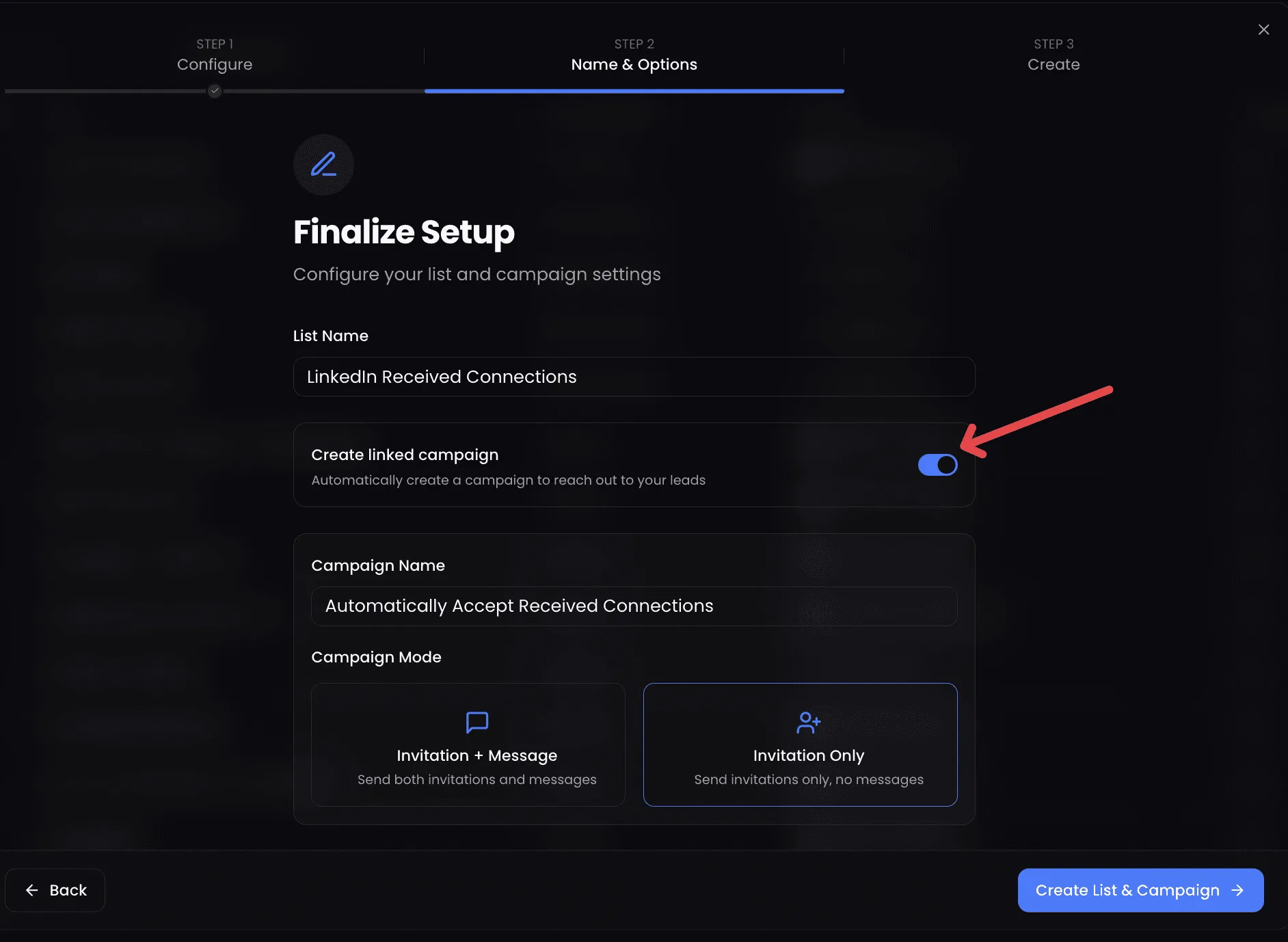
(Optional) Rename your list
Give your list a descriptive name. Toggle off "Create linked campaign" - we'll set up the campaign manually in the next step for more control.
Click Create List
Your SmartList is now active! ReactIn will automatically monitor your incoming invitations.
Step 2: Launch the Auto-Accept + DM Campaign
Now that your SmartList is active and tracking incoming requests, let's set up the campaign that will automatically accept them and send a welcome message.
Go to Campaigns → New Campaign
Navigate to the Campaigns section and create a new campaign.
Click Create Campaign
Start the campaign creation wizard.
Name your campaign
Give it a clear name like "Auto-Accept + DM Connection Requests".
Select your SmartList as the source
Choose the "LinkedIn Received Connections" list you just created.
Choose the campaign mode
Select "Invitation & Message" to auto-accept and send a DM, or "Invitation Only" to just accept without messaging.
Select your LinkedIn account
Choose the same LinkedIn account connected to your SmartList.
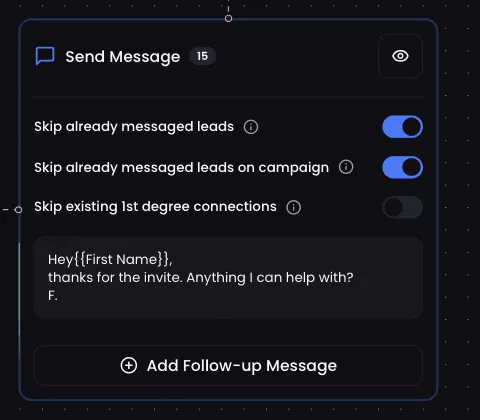
Write your welcome message
If you chose "Invitation & Message", craft your personalized welcome DM. Use variables like {{firstName}} for personalization, and see what an automated LinkedIn message can and cannot do before you write it.
Click Start Campaign
Your auto-accept automation is now live! ReactIn will accept requests and send messages automatically.
Example welcome DM template:
“Hey {{firstName}}, thanks for connecting! Anything I can help you with? 🙂”
Built-in campaign safety
- Accepts a random number of requests per day
- Runs once daily during your working hours
- Skips sending a DM if a conversation already exists
Should You Accept All LinkedIn Connection Requests?
Should you accept all LinkedIn connections, or be selective? This is a common dilemma, especially when you're receiving dozens of requests from strangers. Here's a balanced breakdown to help you decide whether to accept LinkedIn requests from strangers.
Pros of accepting all LinkedIn connections
- Larger network = more reach for your posts and content
- More connections unlock 2nd and 3rd degree access to prospects
- Some "strangers" may be potential clients, partners, or referral sources
- A bigger network signals authority and credibility in your industry
Cons of accepting all LinkedIn requests
- Spam and irrelevant messages flood your inbox
- Fake profiles or bots can compromise your account's reputation
- Your feed becomes diluted with irrelevant content
- LinkedIn may flag your account if you accept too many low-quality connections
The smart middle ground: selective auto-accept
The best approach isn't to accept all or reject all - it's to filter intelligently. With ReactIn's enrichment filters, you can auto-accept connections that match specific criteria and leave the rest for manual review:
- Job title filter: Accept requests from people in relevant roles (e.g., "Marketing Manager", "CEO", "Founder")
- Company size filter: Focus on companies that match your target market (e.g., 10-500 employees)
- Industry filter: Accept connections from industries you serve or want to break into
- Profile completeness: Skip profiles with no photo, no headline, or very few connections - these are often fake accounts
Bonus: Segment with Enrichment Filters
For advanced targeting, ReactIn lets you enrich every new lead with additional data fields:
- Profile Headline (already enriched by default)
- Company Description - understand what the company does
- Company Size - filter by employee count
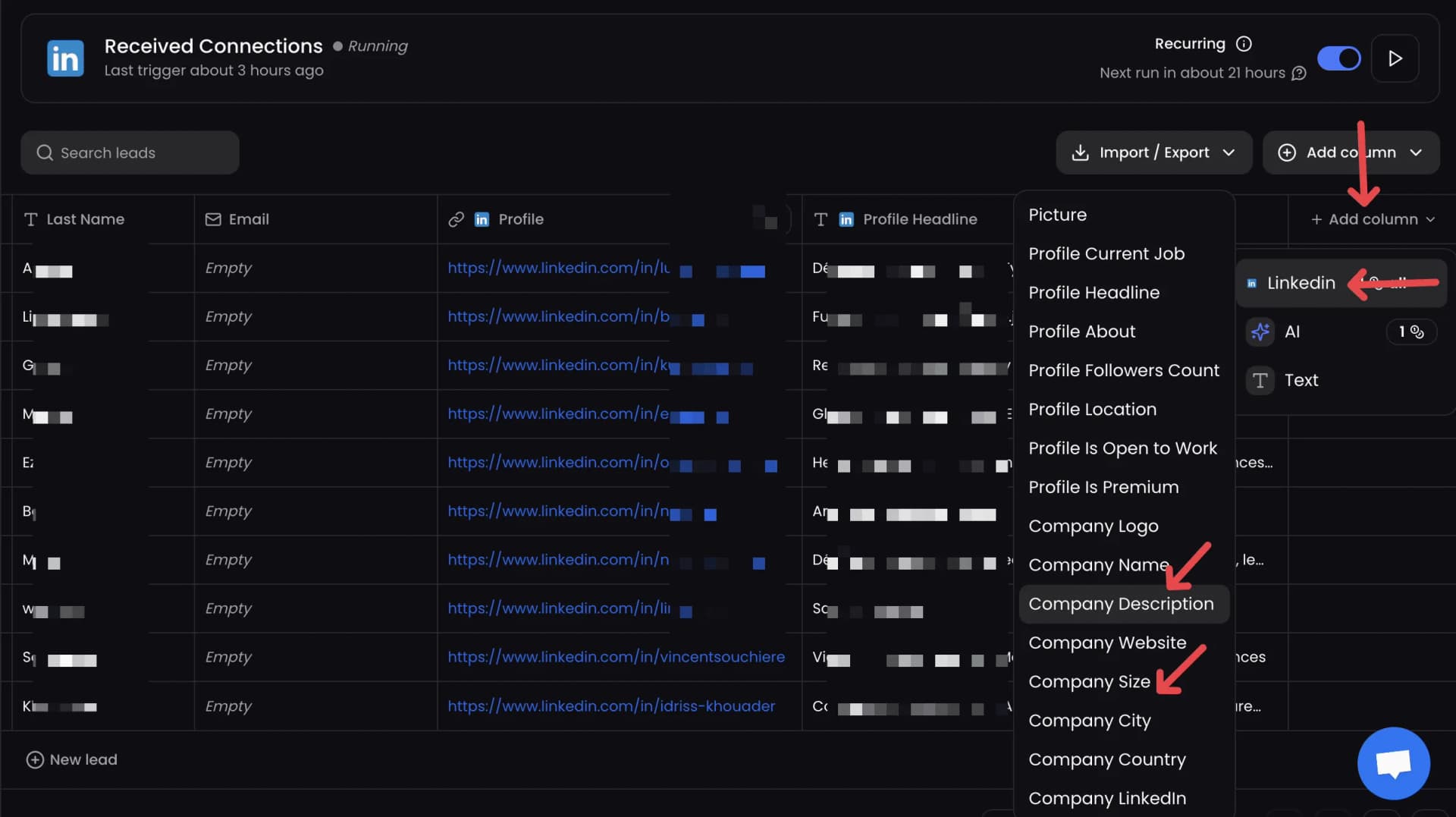
Example A: Accept Only (Non-targeted)
“IF ProfileHeadline DOES NOT CONTAIN "HR" AND CompanyDescription DOES NOT CONTAIN "SaaS" AND CompanySize IS GREATER THAN 50 → Accept only (no DM)”
Example B: Accept + Send DM (Highly targeted)
“IF ProfileHeadline CONTAINS "HR" AND CompanyDescription CONTAINS "SaaS" AND CompanySize IS LESS THAN 50 → Accept + send personalized DM”
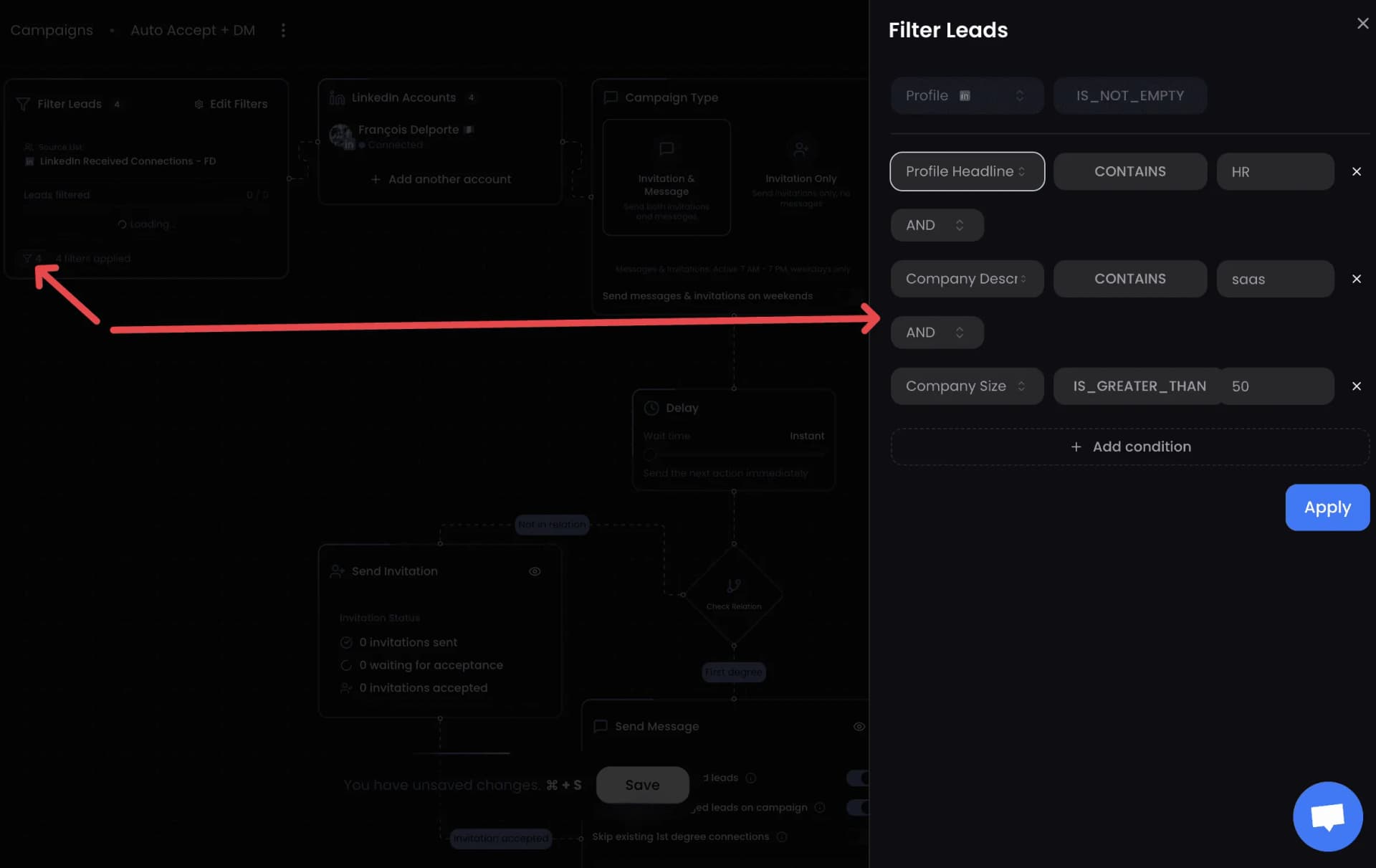
Keep Your Account Safe
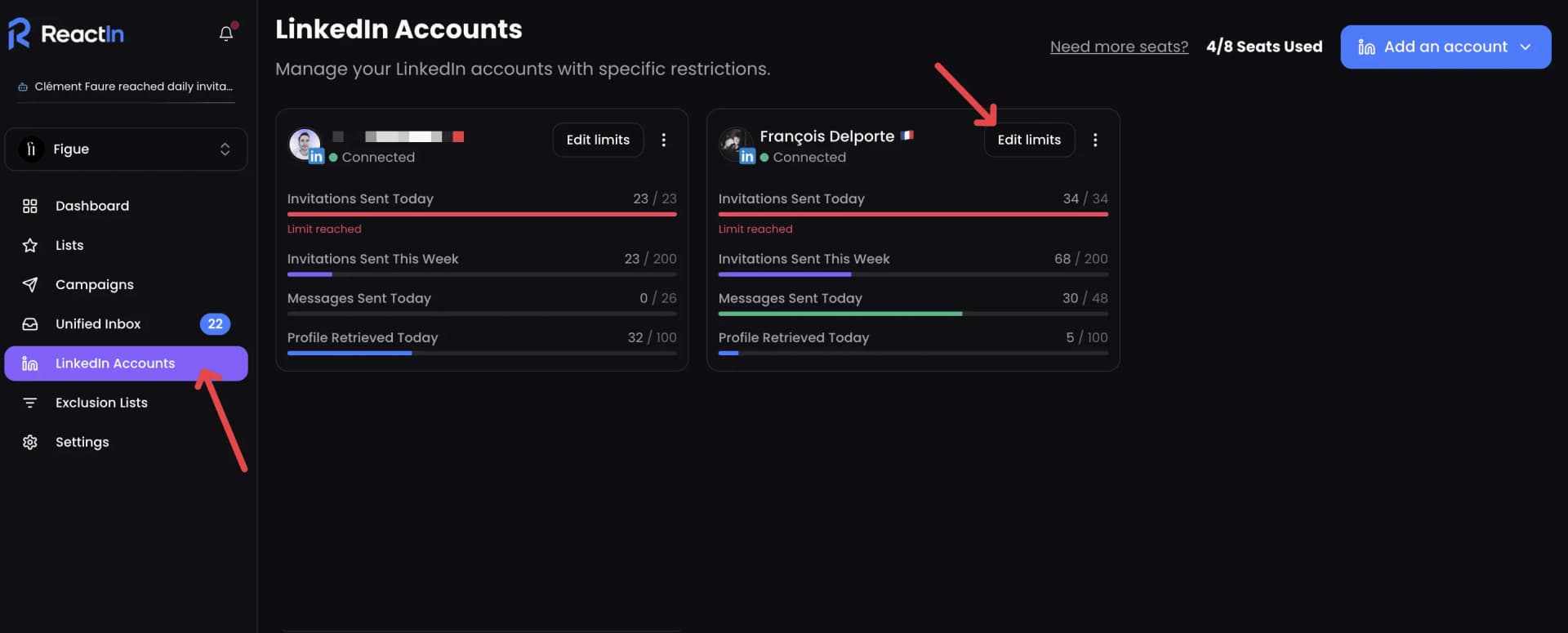
Automation on LinkedIn requires precision. ReactIn was built with safety first:
- One daily run - your list refreshes once every 24 hours
- Randomized volume - number of actions varies per day
- Account limits respected - no bulk actions beyond LinkedIn safe zones
- Smart delay system - each action is spaced to replicate human timing
Safe limits by account type:
| Account Type | Daily Limit | Why |
|---|---|---|
| Personal (active) | 10/day | Matches typical human behavior |
| Personal (passive) | 5/day | Lower activity = lower limits |
| New account (<6 months) | 3-5/day | Build reputation slowly |
Conclusion: Automate LinkedIn Connections the Right Way
Automatically accepting LinkedIn connections doesn't mean spamming. It means saving time, staying consistent, and engaging smarter. If what you actually need is the outgoing side, automating LinkedIn connection requests is a different setup with different limits, and the key in both cases is doing it safely.
If you add a note to your own outgoing requests, check the LinkedIn connection note character limit first: it is shorter on free accounts.
With ReactIn's LinkedIn Received Connections SmartList + Auto-Accept Campaign, every new invite becomes an opportunity to start a valuable conversation. It’s the best auto accepter for LinkedIn connections - safe, intelligent, and fully automatic.
Start building genuine relationships at scale today.
“27% average reply rate across 5,000+ user campaigns”
Ready to automatically accept your LinkedIn connections? Create your free ReactIn account and set up auto-accept in under 5 minutes.
This guide is part of our complete LinkedIn automation playbook for 2026 - covering everything from intent signals to safety limits.
Frequently Asked Questions
Sources & Further Reading
- Learn how to manage your LinkedIn connection requests and invitations in the LinkedIn Help Center on managing invitations.
- LinkedIn enforces weekly invitation limits to protect the platform. Understand the current limits in the LinkedIn Help Center on invitation restrictions.
Related Articles
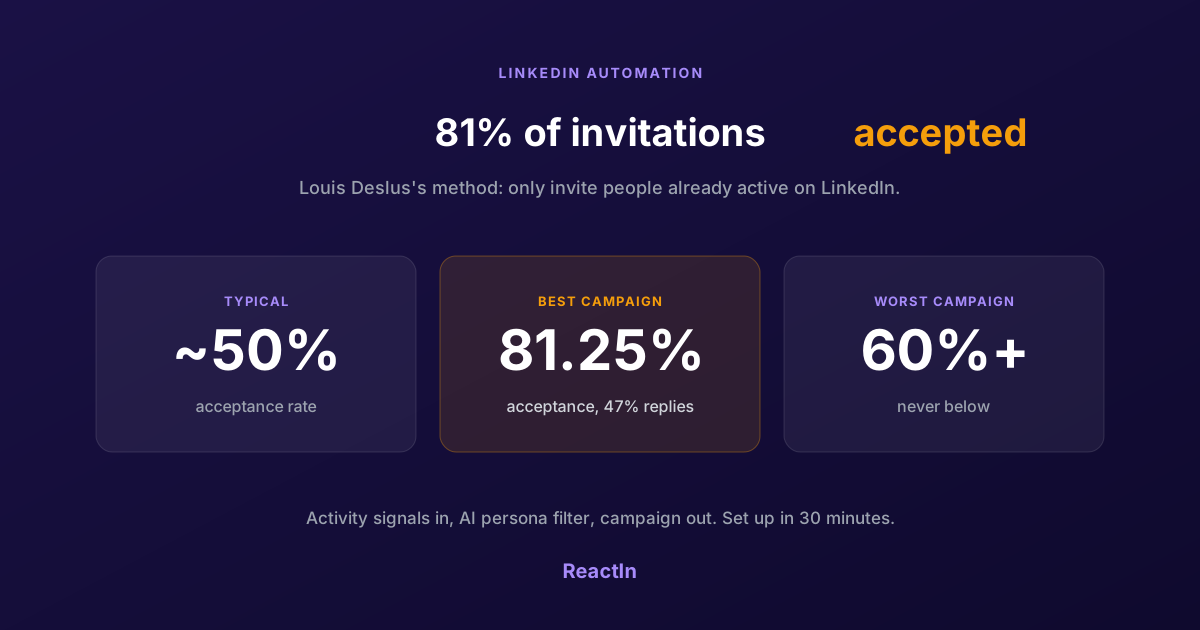
81% LinkedIn Acceptance Rate: Louis Deslus's Method, Set Up in 30 Minutes
Louis Deslus gets 81% of his LinkedIn invitations accepted and no campaign under 60%. The method: invite only people already active on LinkedIn, filter them to your persona, and let the list feed the campaign.
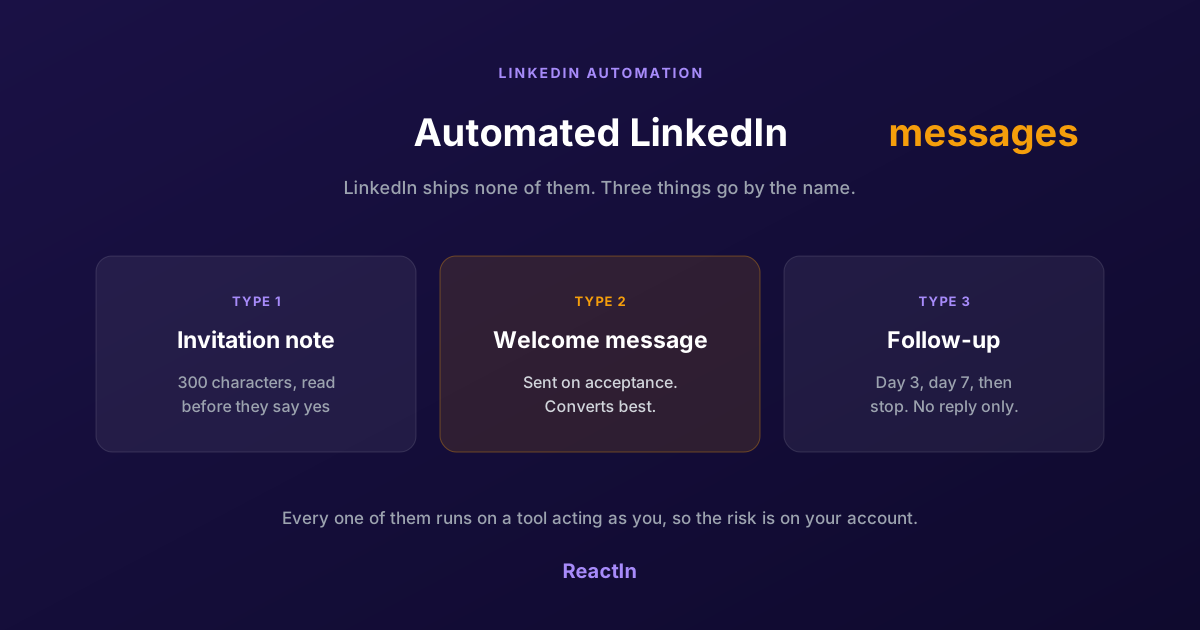
Automated LinkedIn Messages: How to Send Them Without Getting Restricted (2026)
LinkedIn ships no automated messaging at all. Here are the three things people call an automated LinkedIn message, how to set one up, what the terms actually say, and the three cases where writing by hand wins.
Best LinkedIn Automation Tool for Agencies in 2026 (Ranked by Total Cost, Not Feature Lists)
The 7 best LinkedIn automation tools for agencies in 2026, ranked by true cost at scale. ReactIn replaces 3-4 tools ($69/mo vs $300+/mo stack) with intent signals, AI enrichment, and unified inbox. Full "True Cost for 10 Accounts" comparison included.
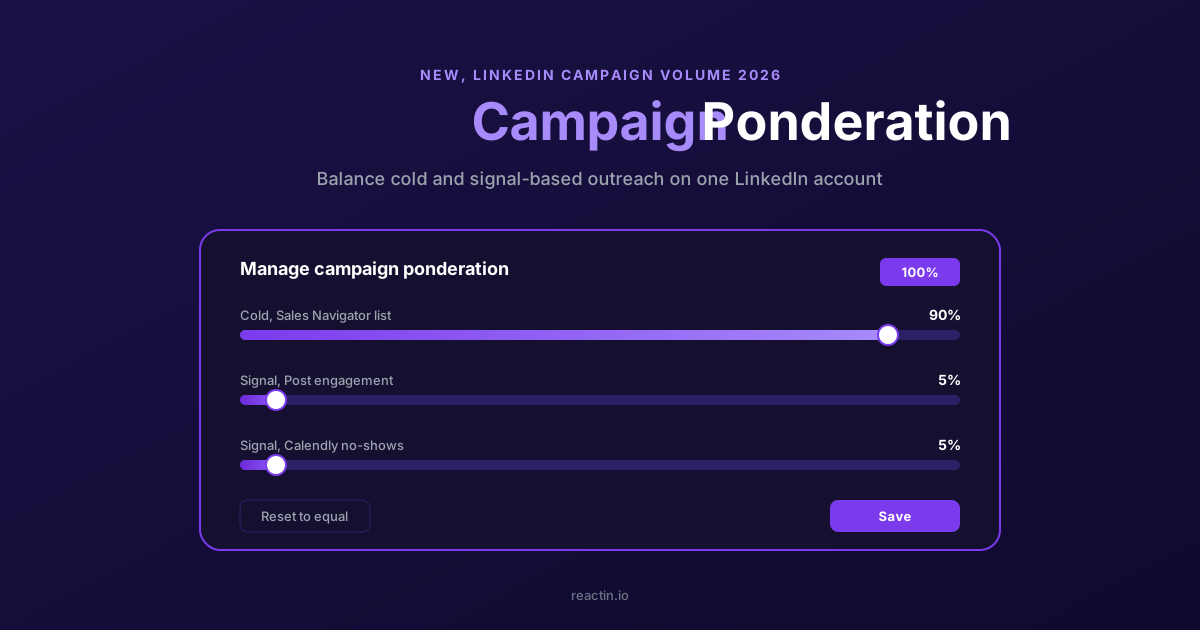
How to Balance LinkedIn Campaign Volume Across Tools (Waalaxy, HeyReach, Expandi, Dripify, LGM, PhantomBuster, Gojiberry vs ReactIn)
Most LinkedIn automation tools force you to pick: one big cold campaign, or none. Here is how Waalaxy, HeyReach, Expandi, Dripify, LGM, PhantomBuster and Gojiberry actually let you split daily volume between campaigns - and how ReactIn’s new Campaign Ponderation finally lets you run a 90/5/5 mix of cold + signal-based outreach.